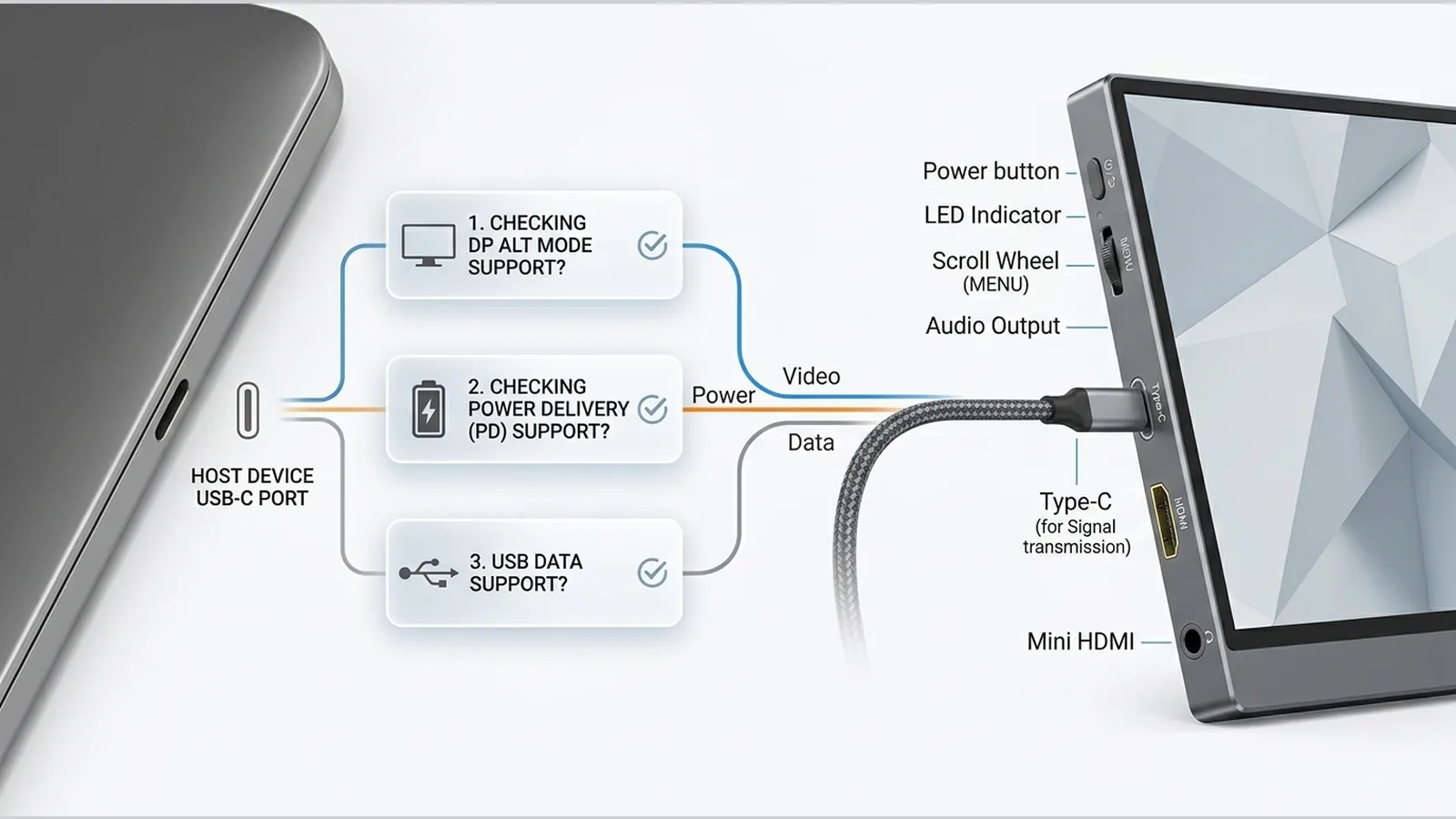
USB-C DisplayPort Alt Mode explained for portable monitors
USB-C DisplayPort Alt Mode explained for portable monitors means this: the USB-C plug is only the connector shape, while DisplayPort Alt Mode is the separate capability that can carry DisplayPort video over compatible USB-C ports and cables. Before you buy a portable monitor, check the host, cable and display path as distinct questions rather than assuming every USB-C socket will send video.
USB-C shape versus capability
USB-C describes the reversible connector. It does not, by itself, confirm that a port can output video. A laptop, phone, tablet or dock may expose USB-C for data, charging, or both, yet still lack the video signalling your monitor needs. Treat the physical shape as one check only, then look for the video capability separately.
That distinction matters for portable monitors because many setups rely on a single cable path. If the host port cannot carry DisplayPort video, a USB-C-shaped cable will not create that capability. Confirm support in the device maker’s documentation before you rely on a particular port.
What DisplayPort Alt Mode does
DisplayPort Alternate Mode (often shortened to DisplayPort Alt Mode) is the capability that carries DisplayPort video over compatible USB-C ports and cables. In other words, the connector may look identical across devices, but only ports and cables that implement Alt Mode can use that video path.
VESA’s guidance on DisplayPort Alternate Mode over USB Type-C frames USB-C as the connector and Alt Mode as the video-carrying capability. When you evaluate a portable-monitor purchase, ask whether the host supports DisplayPort Alt Mode, whether the cable preserves that signalling, and whether the display accepts that input—three checks, not one.
How to check a host device
Start with the manufacturer’s specifications for the exact model and port you plan to use. Look for wording that confirms DisplayPort Alt Mode, DisplayPort over USB-C, or an equivalent video-over-USB-C statement. Marketing phrases such as “USB-C port” alone are not enough.
On Windows PCs, once a cable is connected, you can use the built-in display tools to detect an external screen, arrange monitors, and choose extend or duplicate modes. Microsoft’s guidance on using multiple monitors in Windows covers detection, arrangement and extend/duplicate controls. If nothing appears, follow the maker’s troubleshooting path for cables, adapters, docks, drivers and detection rather than assuming the portable monitor is at fault.
Cable capability checklist
Use a short checklist before you settle on a cable:
- Confirm the host port supports DisplayPort Alt Mode for video.
- Confirm the cable is rated for the video path you need, not only USB data or charging.
- Confirm any adapter, dock or hub in the chain also supports the same video capability.
- Test the simplest path first: host to display with the fewest intermediate devices.
- If the image fails, change one variable at a time—cable, port, adapter or dock—so you can isolate the break in the chain.
Microsoft recommends checking cables, adapters, docks, drivers and detection steps when an external display is not working. That methodical sequence is more reliable than replacing the monitor first.
Power is a separate question
Video signalling and power delivery are different capabilities, even when they share a USB-C connector. A port that can charge a device may not send video, and a video-capable path may still need a separate power arrangement for the display. Do not treat one-cable convenience as guaranteed unless your host, cable and display documentation each confirm the combined behaviour you want.
When you compare portable monitors, keep power, video and any touch or accessory features as separate checklist items. Verifying one does not verify the others.
Fallback connection paths
If USB-C DisplayPort Alt Mode is unavailable on your host, look for another documented video output—such as a dedicated display port on the computer or an officially supported adapter path from the device maker. Prefer the manufacturer’s connection guidance for that model over generic assumptions about laptops, phones or consoles.
On Windows, after you connect through a fallback path, use display detection and arrangement controls to place the external screen. If the display still does not appear, work through cable, adapter, dock, driver and detection checks before concluding that the monitor is incompatible.
Next step
If you are comparing a 15.6-inch FHD portable monitor for everyday desk or travel use, review the live product details—including the 12-month warranty term—before you decide. Specs, included accessories and host compatibility should be confirmed on the product page rather than assumed from a USB-C connector alone.
See the current 15.6-inch FHD portable monitor details when you are ready to check what is offered on this site.
FAQ
Does USB-C carry video?
Not automatically. USB-C is the connector shape. Video requires a capability such as DisplayPort Alt Mode on compatible ports and cables, plus a display that accepts that signal.
What should I look for in a DisplayPort Alt Mode monitor setup?
Confirm host-port Alt Mode support, a cable that preserves that video path, and display input compatibility. Treat power delivery and any extra features as separate checks.
How do I check USB-C video support on a Windows PC?
Read the PC maker’s port specifications first. After connecting, use Windows display detection, arrangement and extend/duplicate controls. If the screen is missing, follow Microsoft’s troubleshooting steps for cables, adapters, docks, drivers and detection.
Can I assume every laptop, phone or console will work the same way?
No. Compatibility depends on the specific host, cable and display path. Use device-maker documentation for each product rather than a generic setup promise.