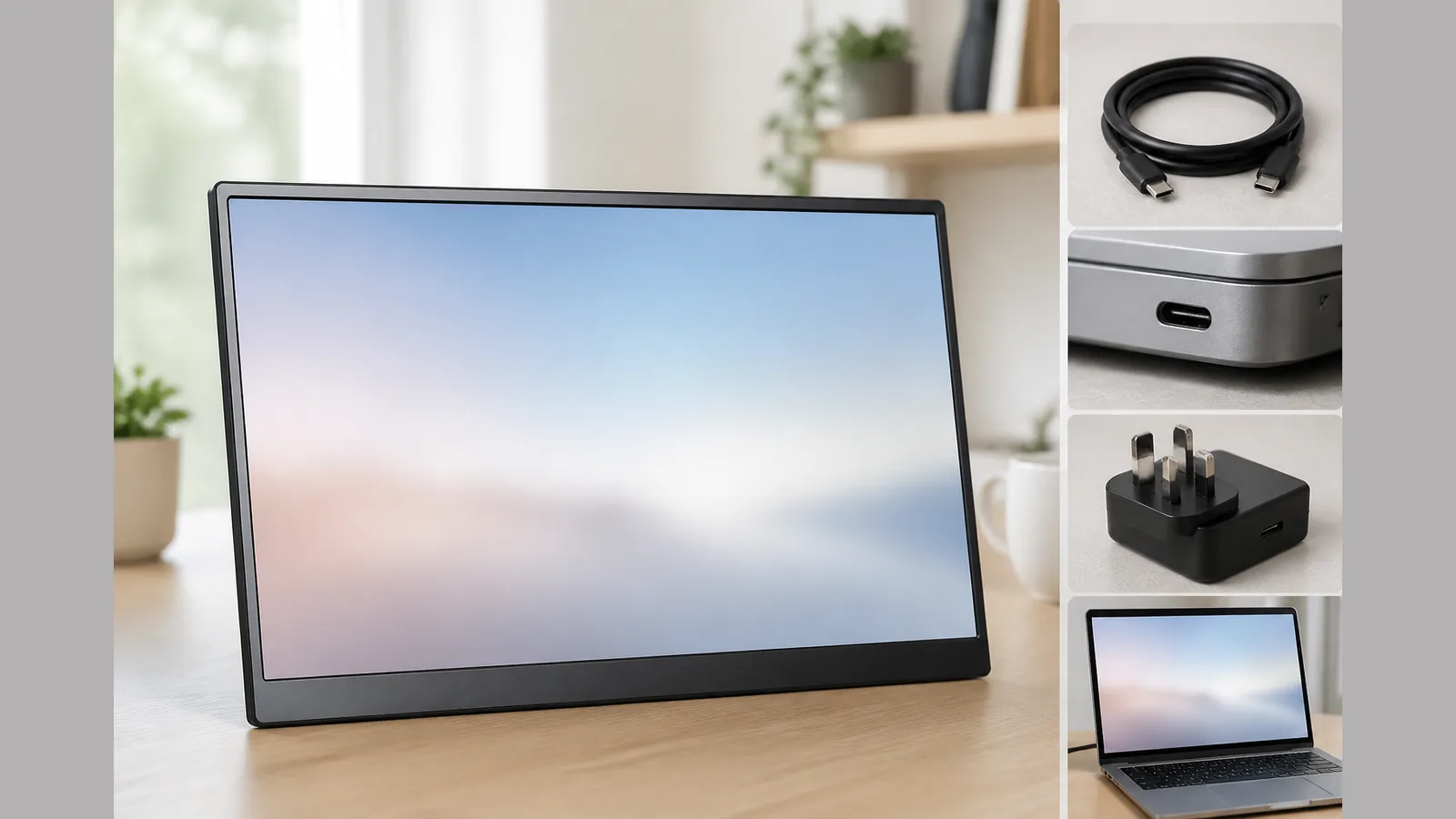
Portable monitor screen flicker USB-C troubleshooting
Direct answer
For portable monitor screen flicker USB-C troubleshooting, treat flicker as a connection or signal-path issue first: confirm whether the video path, power path and Windows display settings are stable before changing host devices or assuming a faulty panel. Work in a fixed order—isolate video from power, swap one cable or port at a time, then use Windows detection and driver checks—so you do not confuse an intermittent cable with a software or hardware fault.
Separate video, power and software causes
Flicker that appears only on an external display is often a mix of three independent layers. Separating them stops you from replacing the wrong part.
- Video path — the cable, adapter, dock and the host port’s ability to carry DisplayPort video. USB-C is only a connector shape; DisplayPort Alt Mode is the capability that carries DisplayPort video over compatible USB-C ports and cables.
- Power path — how the portable screen and the host are powered. If you can run the panel from its own supply and the video link separately, do so during testing so a weak shared path is easier to spot. Do not assume any given portable monitor supports one-cable video-plus-power unless that is verified on its live specification.
- Software path — Windows display detection, arrangement (extend or duplicate), graphics drivers and any dock or USB display software. Microsoft’s guidance for external monitors starts with cables, adapters, docks, drivers and detection steps rather than immediate hardware replacement.
Cable and port swap matrix
Change only one variable per step and note whether the flicker stops, slows or moves with the cable.
- Reseat the cable at both ends; check for bent pins, loose adapters and poorly seated dock plugs.
- Try a different known-good cable of the same type you are using, then a different host USB-C or video port if available.
- If you use a dock or adapter, bypass it once and connect as directly as your hardware allows.
- If a second video input exists on the monitor (for example a separate HDMI path on some models), test that path only when you have confirmed which cables your unit actually includes—do not assume inclusions from a product URL alone.
- Keep the same Windows project mode (extend or duplicate) while you swap cables so software changes do not mask cable results.
A simple log helps: port used, cable or adapter used, power arrangement, and whether flicker continued. That record is more useful than repeating random swaps.
Windows detection and driver steps
After the physical path looks consistent, use Windows’ built-in multi-monitor controls. Windows provides display detection, arrangement and extend/duplicate options for multiple monitors, which helps confirm the OS can see the panel as a separate display.
- Open display settings, detect displays if the screen is dark or intermittent, and confirm the portable panel appears in the arrangement view.
- Switch briefly between extend and duplicate to see whether flicker follows a specific projection mode; then return to the mode you need.
- Update or reinstall the graphics driver from the PC maker or GPU vendor channel you already trust, and reboot once after a driver change.
- If you use a dock, check the dock maker’s Windows guidance for firmware or driver updates—still without assuming every USB-C port can output video.
- Follow Microsoft’s external-monitor troubleshooting flow for cables, adapters, docks, drivers and detection when the display still fails to stay stable.
When to stop testing
Stop escalating once further swaps no longer change the symptom, or when testing risks damaging connectors.
- Stop forcing plugs that do not seat cleanly; a damaged port can create flicker that no software fix will cure.
- Stop after two or three controlled cable and port cycles if the result is unchanged—collect evidence instead of endless trial and error.
- Stop before claiming the panel, laptop, phone or console is incompatible; device-maker documentation should guide model-specific limits.
- Stop if flicker appears only under one unverified third-party cable or dock; replace that link before judging the monitor.
Compatibility evidence to collect
Before you buy replacements or open a support case, gather facts rather than assumptions.
- Host model, OS build and which port you used (and whether that port is documented for DisplayPort Alt Mode video).
- Exact cable and adapter markings; photograph labels if needed.
- Whether power was shared over the video cable or supplied separately.
- Windows projection mode and whether detection listed the display.
- A short note of when flicker started (after a move, new dock, driver update or travel).
Do not treat generic setup advice as a guarantee that every laptop, phone or console will drive every portable screen. Console or phone behaviour in particular needs the device maker’s own connection documentation, not a blanket claim.
Next step
If you are comparing a travel-friendly external display after you have ruled out cables and Windows settings, review the current 15.6-inch FHD portable monitor details on our site. Purchases through this storefront are covered by a 12-month warranty; check the live product page for the specification that applies to the unit you are considering, rather than relying on unverified connection or compatibility claims.
FAQ
Why does a USB-C portable screen flicker on one laptop but not another?
USB-C ports are not equal: only ports and cables that support DisplayPort Alt Mode can carry DisplayPort video. A laptop without that capability, or with a marginal cable or dock, can flicker or drop the signal even when another host looks fine.
What should I try first for external monitor flickering on Windows?
Reseat or replace the cable and any adapter or dock, try another port, then use Windows display detection and arrangement controls and check drivers—matching the order Microsoft outlines for external monitor connection problems.
Can I assume one USB-C cable handles video and power?
No. One-cable operation depends on the host port, the cable and the monitor’s verified design. During troubleshooting, separate video and power whenever you can so each path can be judged on its own.
Does a product page URL prove HDMI, touch or console support?
No. Treat only live, verified specification text as authoritative. Unverified resolution, brightness, weight, touchscreen, HDMI behaviour or console support claims should not guide your purchase or fault diagnosis.