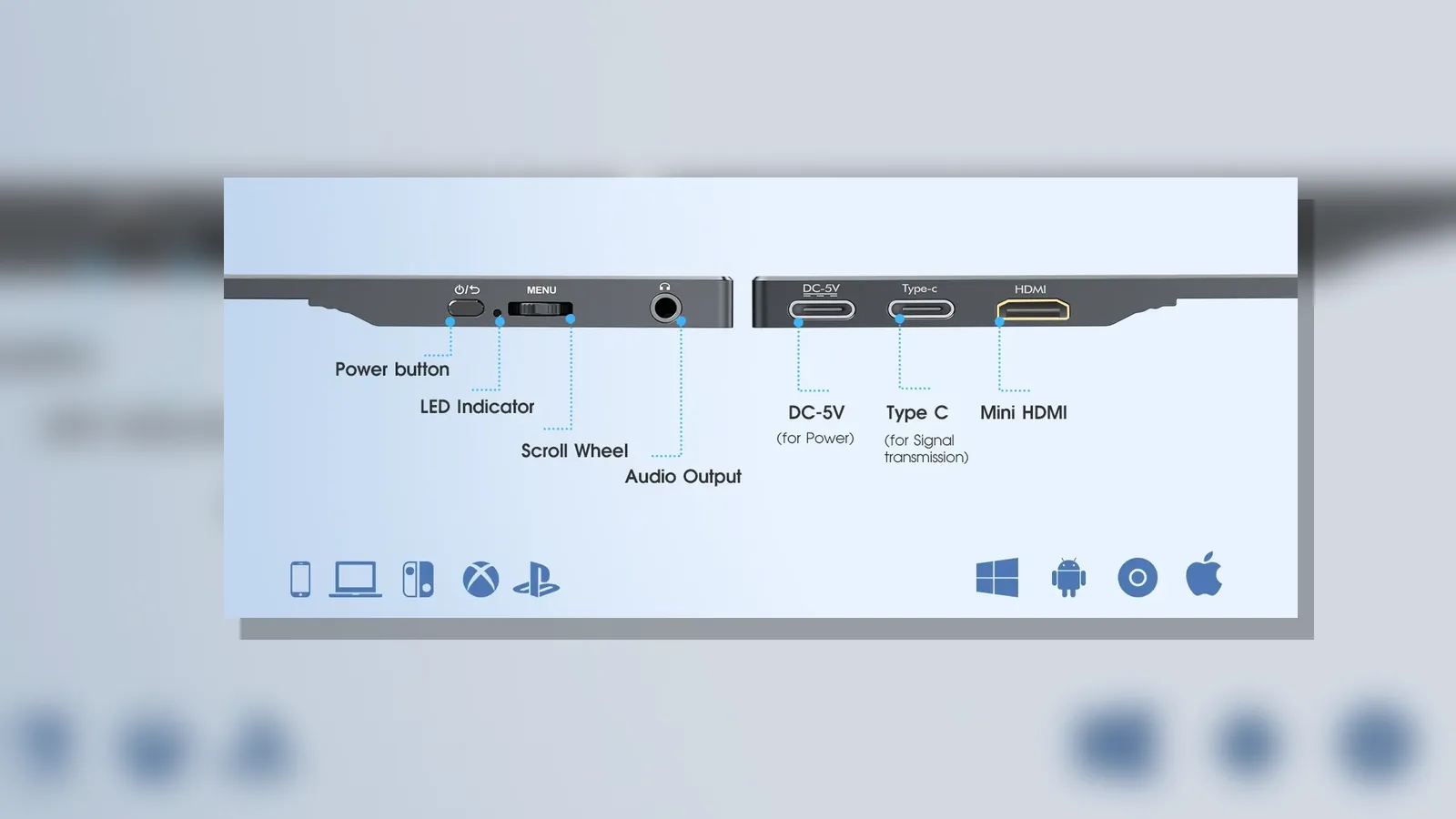
Portable monitor cable checklist before travel: pack for the host device, not the connector
A reliable portable monitor cable checklist before travel starts with the host device you will actually use on the road: confirm which video output it offers, whether that path needs a separate power lead, and which cables or adapters match that host—not the shape of a USB-C or HDMI plug alone.
Start with the host device
List every laptop, phone, tablet or console you plan to drive the second screen from. Note the ports that are present on that hardware, and keep the maker’s connection guidance to hand. A packing list built around a generic connector name often fails when the host cannot send video on that port, or when the display needs a second cable for power.
For consoles, follow the manufacturer’s own TV or external-display steps. Nintendo’s official TV-mode guidance for Nintendo Switch, for example, calls for the dock, AC adapter, HDMI cable and the correct input on the display.
Map video and power paths
Treat video and power as separate lines on your checklist until you have verified both for your specific host and monitor.
- Video path: the cable or adapter that carries the picture from host to display.
- Power path: any mains adapter or USB power lead the monitor needs, plus whatever the host itself requires.
- Dock or hub path: if you travel with a dock, include its own power supply and the cable that links dock to display.
Do not assume one lead will do both jobs unless your host documentation and the monitor’s live specification both confirm it for that exact setup.
USB-C capability checks
USB-C is only a connector shape. Carrying DisplayPort video over USB-C depends on DisplayPort Alt Mode on compatible ports and cables, as described in VESA’s DisplayPort Alternate Mode over USB Type-C material. Before you pack:
- Check the host’s official specification or support pages for video-out over USB-C (often labelled DisplayPort Alt Mode or similar).
- Confirm the cable is rated for video, not charge-only.
- If the host only offers USB-C data or charging, plan an HDMI (or other) video route instead of relying on that USB-C port for picture.
None of these checks prove that a particular portable monitor will work with every USB-C device; they only reduce the risk of packing the wrong lead.
HDMI plus power checklist
When the host uses HDMI—or a dock that outputs HDMI—pack the HDMI cable that fits that path, any mini/micro adapters the host needs, and a separate power arrangement for the monitor if required.
- HDMI cable of the length you actually need at the desk or hotel table.
- Any host-side adapter (for example USB-C to HDMI) that your host maker documents for video out.
- Monitor power adapter or USB power cable, if the display needs it alongside HDMI.
- For Switch TV mode, the dock, AC adapter and HDMI cable as Nintendo’s support pages describe, plus the correct display input selected on arrival.
Test before leaving
Microsoft’s Windows guidance for external monitors that fail to show an image stresses checking cables, adapters, docks, drivers and detection steps. Mirror that discipline before travel:
- Connect the exact host, cable set and power leads you intend to pack.
- Confirm the image appears and that you can switch inputs if the display has more than one.
- If nothing appears, work through the host maker’s troubleshooting order rather than swapping to an untested spare at the airport.
- Leave unverified “universal” claims aside; a successful home test only covers the devices you actually tried.
Compact packing list
Use this short list and tick only what your verified host path needs:
- Host charger and any travel plug adapter your destination requires.
- Verified video cable (USB-C video-capable, HDMI, or the documented adapter chain).
- Separate monitor power lead if your setup needs one.
- Dock or hub plus its power supply, if that is part of the video path.
- Spare video cable only if you have already tested it with the same host.
- Small pouch so leads stay labelled by role (video vs power).
Omit weight, resolution, brightness or console-compatibility claims unless you have checked them on the live product page for the exact unit you are taking.
Next step
When you are ready to review a portable display option for travel, see the current product details for the 15.6-inch FHD portable monitor. Eligible purchases from this shop are covered by a 12-month warranty; check the live listing for cables and specifications before you pack, rather than assuming a one-cable or universal host setup.
FAQ
What belongs on a portable monitor cable checklist before travel?
Host charger, the video cable or adapter your host documentation supports, any separate monitor power lead, and—if you use one—the dock with its own power and HDMI (or other) output cable. Test that exact combination before you leave.
Is every USB-C port enough for a second screen?
No. USB-C is the connector; DisplayPort Alt Mode is the capability that carries DisplayPort video over compatible USB-C ports and cables. Confirm Alt Mode (or another documented video-out method) on the host before you rely on a single USB-C lead.
What should I pack for Nintendo Switch TV mode?
Follow Nintendo UK’s TV-mode instructions: dock, AC adapter, HDMI cable and the correct input on the display. Do not treat a portable monitor as a guaranteed substitute for that documented path unless you have verified it yourself.
What if the external display stays blank?
Work through the host maker’s steps. On Windows, Microsoft advises checking cables, adapters, docks, drivers and detection settings when an external monitor is not working.
Does this shop’s portable monitor include a fixed travel cable kit?
Do not assume included cables, plug type or host compatibility from the product URL alone. Use the current product details for what is confirmed on the live listing. A 12-month warranty applies to eligible purchases; start date, exclusions and claim process details are not stated here.