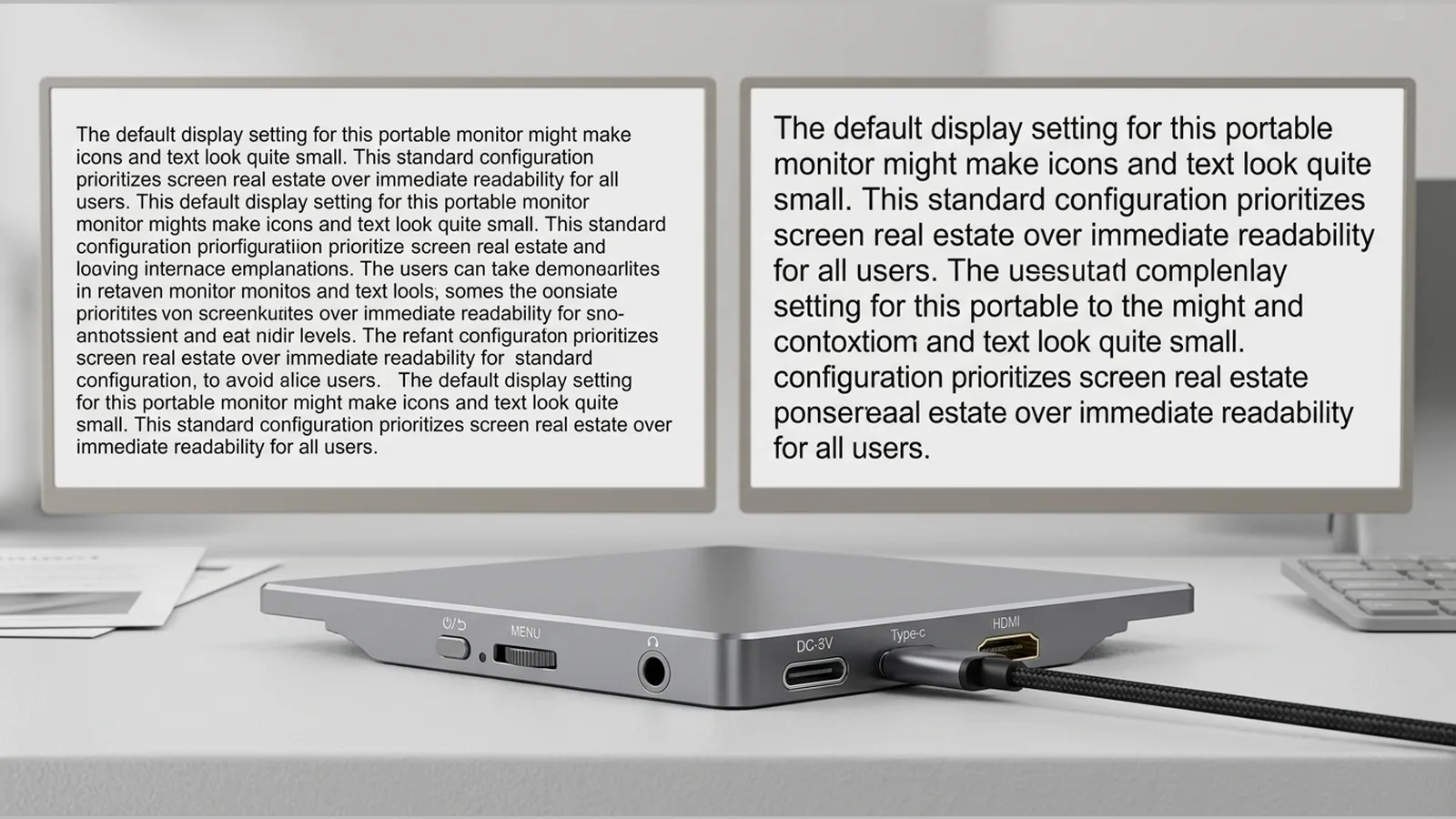
portable monitor text too small scaling Windows
If text on a portable monitor looks too small in Windows, open Display settings, select that external screen, then raise Scale (and only then check Resolution), preferring the recommended values Windows shows for that display.
Direct fix
On the PC that drives the portable monitor:
- Right-click the desktop and open Display settings.
- Under Select a display, click the numbered rectangle that matches your portable monitor (not the built-in laptop panel, if you have one).
- Find Scale and try the next higher percentage Windows lists for that screen.
- Confirm Display resolution is set to the recommended option for that monitor unless you have a clear reason to change it.
- If the layout feels wrong across screens, use the arrangement view so the portable monitor sits where you expect relative to your main display, and choose Extend or Duplicate as needed.
Microsoft documents these scale, resolution and orientation controls, and notes that the recommended settings are normally preferred. The same help also covers detecting and arranging multiple monitors, including extend and duplicate modes.
Identify the correct display
Small text is often fixed on the wrong screen. In Display settings, click Identify so large numbers appear on each panel, then select the portable monitor before you change Scale or Resolution.
If Windows has not listed the portable monitor yet, use the detect control described in Microsoft’s multiple-monitor guidance, then rearrange the display rectangles so mouse movement matches how the screens sit on your desk.
Scale versus resolution
Scale enlarges text, apps and UI elements as a percentage. Resolution sets how many pixels Windows uses on that panel. When text is simply hard to read, raise Scale first while leaving resolution on the recommended value. Dropping resolution to “make things bigger” can blur the image; scaling is the usual first lever for a portable monitor text too small scaling Windows problem.
Orientation (landscape or portrait) also lives in the same Display settings area if you have physically rotated the panel.
Recommended settings first
After you select the portable monitor, apply Windows’ recommended scale and recommended resolution, then adjust only scale if text still feels small. Prefer those recommended values unless a specific app or workflow requires otherwise. If an app still looks wrong after a scale change, sign out or restart that app so it picks up the new DPI.
Mixed-DPI app checks
Laptops and portable monitors often run at different scale factors. Some programmes redraw cleanly; others stay sharp on one screen and look small or soft when dragged to the other.
- Move the window fully onto the portable monitor, then close and reopen the app.
- Check whether the app has its own zoom or font-size control separate from Windows Scale.
- Avoid assuming every laptop, phone or console will behave the same: follow that device maker’s connection and display documentation, and do not treat a generic Windows tweak as a guarantee of operation with every host.
Comfort and DSE review
Readable text is part of comfortable screen work. In the UK, employers must assess display screen equipment (DSE) workstations and reduce risks for regular users, including people who work on the move or at home. If you use a portable monitor for prolonged work, combine Windows scaling with sensible viewing distance, screen height and breaks rather than relying on settings alone.
Next step
If you are comparing a 15.6-inch portable monitor for Windows desk or travel use, review the current product details. Items sold on this site carry a 12-month warranty; warranty start date, exclusions, repair or replacement process, shipping for claims, transfer rules and claim deadlines are not detailed here, so check the product page and purchase terms for those points. Connection method, power needs and host compatibility are not assumed from that page alone—confirm them against the live specification and your device maker’s guidance before you buy.
FAQ
Why is text still small after I change resolution?
Resolution mainly sets pixel count. For small UI text, increase Scale on the correct display while keeping the recommended resolution unless you have a specific need to change it.
Should Scale be the same on my laptop and portable monitor?
Not necessarily. Each display can use its own scale. Match each screen’s recommended settings first, then raise scale on the portable monitor if its text still feels small.
Does fixing Windows scaling prove my portable monitor will work with every device?
No. Scaling only affects how Windows draws the desktop on a display it has already enumerated. Use your host device’s official documentation for cables, ports and supported modes; do not infer USB-C video, single-cable power, touch behaviour, HDMI behaviour or console support without a verified specification.
What warranty applies if I buy from this site?
A 12-month warranty term applies to products sold on this site. Further coverage detail is not stated in the material used for this article, so refer to the product page and checkout terms for anything beyond that duration.