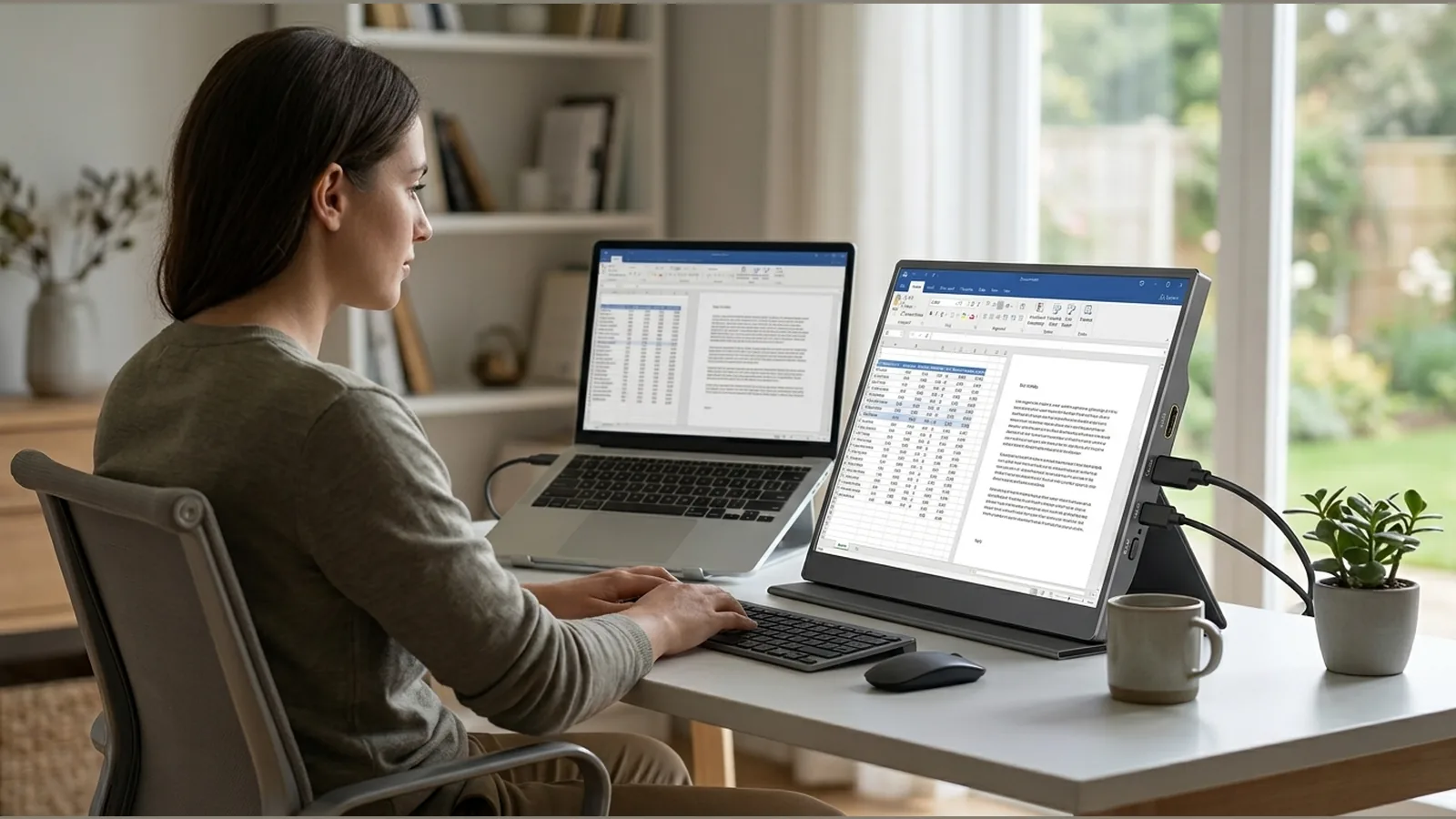
portable monitor home office workstation assessment
A portable monitor home office workstation assessment helps UK employers and regular display-screen users check whether a second screen at home or on the move is set up safely: assess who needs a DSE review, arrange screen, keyboard, mouse and chair for a comfortable posture, manage glare and lighting, plan breaks, and keep a simple record—without assuming any particular cable, power or device compatibility.
Who the DSE guidance applies to
Under UK health and safety guidance on display screen equipment (DSE), employers must assess workstations and reduce risks for people who use DSE regularly. That duty covers mobile and home workers as well as office-based staff, so a laptop used with a portable second screen at home still sits within the same risk-assessment approach.
If you are self-employed or arranging your own desk, the same practical checks remain useful even where formal employer duties do not apply in the same way: treat the portable screen as part of the workstation you use for prolonged work.
Screen position and viewing comfort
HSE advises arranging the screen, keyboard, mouse and chair so you can work in a comfortable posture. Place the portable monitor so you can view it without twisting your neck or hunching forward for long periods. Sit so the top of the active display area is roughly at or slightly below eye level where the stand or surface allows, and keep frequently used windows on the screen you can see with the least awkward posture.
Where Windows is used, the operating system provides display detection, arrangement and extend or duplicate controls for multiple monitors. Use those settings to place the second display where it matches your physical layout, then confirm that text size and scaling remain readable without leaning in.
Keyboard and pointing device
A comfortable DSE setup depends on more than the screen alone. Keep the keyboard and pointing device positioned so your shoulders stay relaxed and your wrists are not held at extreme angles. If the portable monitor sits to one side of a laptop, avoid using the laptop keyboard and trackpad for long stretches while your torso is twisted toward the second screen—reposition the keyboard and mouse so they sit squarely in front of you whenever practical.
Do not assume a single cable or port type will drive every laptop, phone or console. Follow the device maker’s documentation for connection and display steps, and treat any portable monitor as one option among others until your own hardware combination is confirmed.
Glare and lighting
Position the screen to reduce reflections from windows and overhead lights. Side lighting is often easier to manage than a bright window directly behind or in front of the display. Adjust room lighting and, where available, the monitor’s brightness controls so you are not squinting or raising contrast to overcome glare.
If you move the portable screen between rooms or desks, repeat a quick glare check each time: the same panel can become uncomfortable in a different light without any change to your software settings.
Breaks and changes of activity
Regular short breaks and changes of activity help reduce the strain associated with prolonged DSE use. Look away from the screen periodically, vary tasks that keep you fixed in one posture, and stand or walk when work allows. A second screen can encourage longer unbroken focus; build deliberate pauses into your routine rather than relying on the extra display alone to improve comfort.
Simple assessment record
For a portable monitor home office workstation assessment, a short written record is enough for most situations. Note who uses the setup, where it is used, how the screen, keyboard, mouse and chair are arranged, any glare or lighting issues, and what changes you made. Update the note if the worker’s pattern of use or the equipment layout changes.
- User and usual location (home desk, shared space, temporary station)
- Screen height, distance and whether the display is extended or duplicated
- Keyboard and pointing-device position relative to the chair
- Lighting or glare actions taken
- Break and task-variation habits agreed
- Date of the check and any follow-up owed
Next step
If you are planning a second screen for home or mobile work, review the current product details for this 15.6-inch FHD portable monitor listing. Items sold on this site carry a 12-month warranty; connection method, power requirements and device compatibility are not assumed from the product page alone—confirm those details against your own equipment and the manufacturer’s guidance before you buy.
FAQ
Does a portable monitor need a formal DSE assessment?
If someone uses DSE regularly for work, UK employers should include that workstation—including home and mobile setups—in their DSE assessment and risk-reduction process. A portable second screen is part of the equipment in use, not a separate category that sits outside the guidance.
Where should I put a portable second screen?
Arrange screen, keyboard, mouse and chair for a comfortable posture: minimise twisting and leaning, keep frequently viewed content on the display that is easiest to see, and use your operating system’s multi-monitor arrangement tools so the virtual layout matches the physical one.
Will this portable monitor work with every laptop or console?
Compatibility depends on the specific devices and cables involved. Use device-maker documentation for connection steps, and do not treat a generic home-office setup guide as a guarantee that any particular portable monitor will operate with every laptop, phone or console.
What warranty applies to products on this site?
Products sold on this site are covered by a 12-month warranty. Start date, exclusions, repair or replacement process, shipping for claims and transferability are not detailed here; check the purchase terms or contact support if you need those particulars.