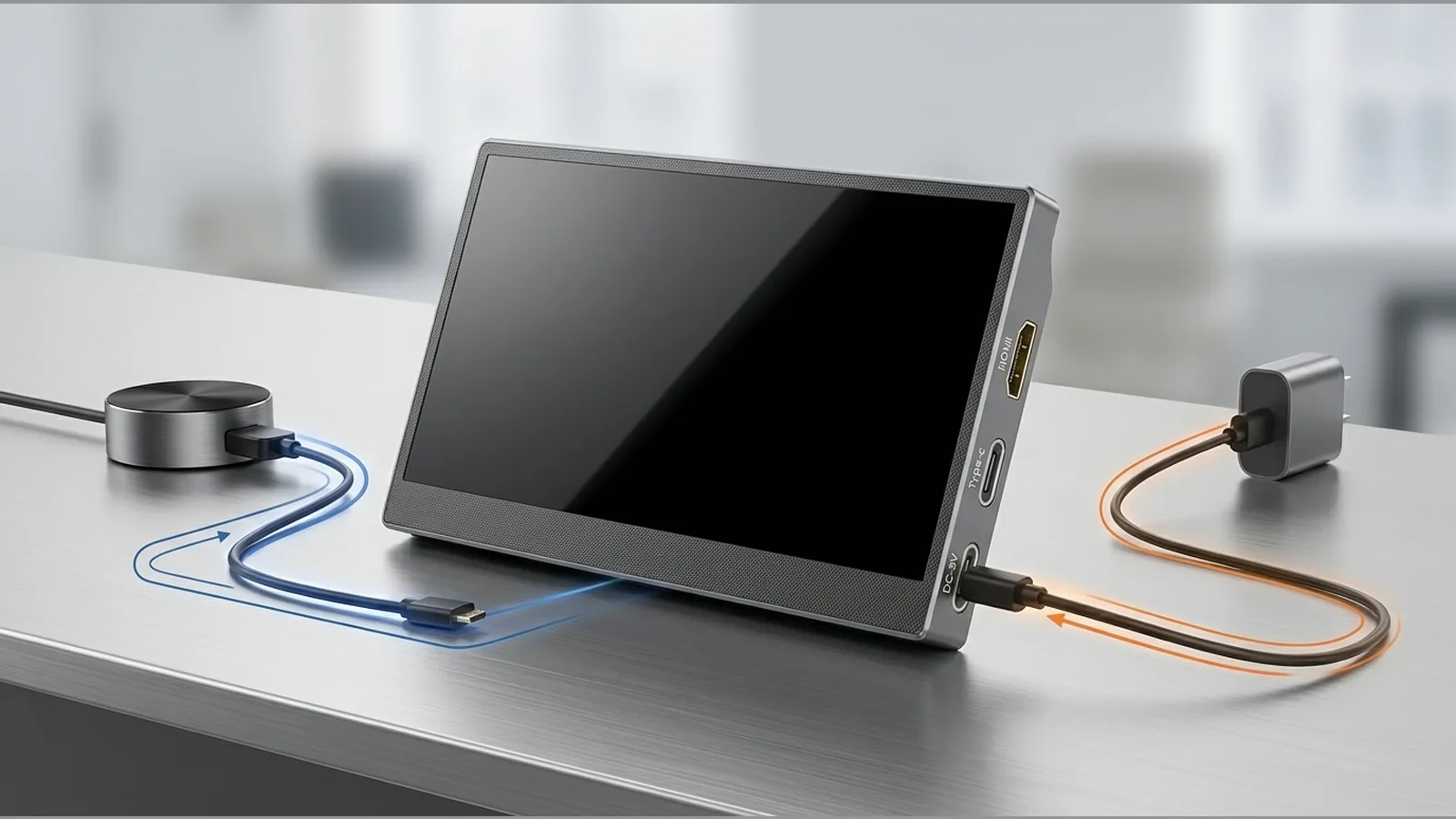
portable monitor HDMI needs separate power explained
Direct explanation
A portable monitor HDMI needs separate power explained simply: HDMI usually carries the video (and often audio) signal, while many portable screens still need their own power feed so the panel can turn on and stay lit. Seeing a picture therefore depends on both paths working—signal into the correct input, and enough power to the display—not on HDMI alone.
HDMI video path versus power path
Think of two jobs. The video path is the HDMI cable (or an HDMI-capable adapter or dock) that takes the picture from the source to the monitor’s HDMI input. The power path is whatever powers the monitor itself—typically a dedicated power cable or adapter connected to a suitable supply. If either path is missing or incomplete, you may get a blank screen, no backlight, or a “no signal” message even when the cable looks plugged in.
That is why a setup that “uses HDMI” can still need a second lead for power. HDMI is not a guarantee that the monitor is being powered; it is primarily the link that carries the image once the screen is on and the input is selected.
Example docked-console setup
A clear official example is Nintendo Switch TV mode. Nintendo’s support guidance for the UK explains that TV mode needs the dock, the AC adapter, an HDMI cable, and the correct input on the display. In other words, the console’s docked video path and the dock’s power path are both required; HDMI alone is not the whole setup.
The same idea applies when you mirror or extend a PC: the computer must output to an external display, and that display must be powered and set to the right input. Windows includes controls to detect displays, arrange them, and choose extend or duplicate modes once the hardware path is in place.
Input and adapter checklist
Before assuming a fault, walk through a short checklist:
- Confirm the monitor’s power connection is seated and the unit is switched on if it has a power button.
- Confirm HDMI is in the monitor’s HDMI input (not a neighbouring port) and that the source is set to output to that display.
- If you use a dock, hub or adapter, treat it as part of the video path—check that piece as carefully as the HDMI cable itself.
- On Windows, use display detection and arrangement tools, and follow Microsoft’s guidance to check cables, adapters, docks, drivers and detection steps when an external display does not appear.
Device-maker documentation is the right place for model-specific steps. A generic cable diagram does not guarantee that every laptop, phone or console will work with every portable screen.
No-signal versus no-power symptoms
Separating symptoms helps you choose the next check:
- No power: the screen stays dark, with no backlight or status light (if your model has one). Start with the power lead, adapter and wall supply before chasing video settings.
- Powered but no signal: the panel appears on, yet shows no picture or a no-signal message. Focus on HDMI seating, input selection, source output, and any dock or adapter in between.
Microsoft’s external-monitor troubleshooting similarly steers you toward cables, adapters, docks, drivers and detection rather than assuming a single cause.
Before buying cables
Match purchases to the paths you actually need:
- Buy an HDMI cable only if the video path is incomplete or unreliable—not as a substitute for monitor power.
- Confirm whether your source outputs HDMI natively or needs an adapter or dock; adapters add another link that must support the connection you intend.
- Do not assume one cable will carry both video and power for a portable monitor unless the product’s live specification explicitly says so—many HDMI-first layouts still need a separate power lead.
- Avoid buying on unverified claims about resolution, brightness, refresh rate, weight or console support; check the listing you intend to purchase.
Next step
If you are comparing a 15.6-inch FHD portable monitor for an HDMI-based desk or travel setup, review the current product details for the live listing. Products sold on this site are covered by a 12-month warranty; fuller warranty terms such as start date, exclusions and returns handling are not restated here.
FAQ
Does HDMI always power a portable monitor?
No. HDMI is primarily the video (and often audio) path. Many portable monitors still need a separate power connection so the panel can operate.
Why does my screen stay black with HDMI plugged in?
Check power first, then input selection and the HDMI path, including any dock or adapter. On a PC, also use Windows display detection and Microsoft’s external-monitor troubleshooting steps.
What does a docked Switch need for the TV?
Nintendo’s TV-mode instructions call for the dock, AC adapter, HDMI cable and the correct display input—not HDMI alone.
Can I rely on one cable for every device?
No. Follow the maker’s guidance for your source device, and verify the portable monitor’s own connection requirements on its product page before you buy cables or adapters.